Chapter 13 — Remote Control: Never Worry About Being Away From Your Computer
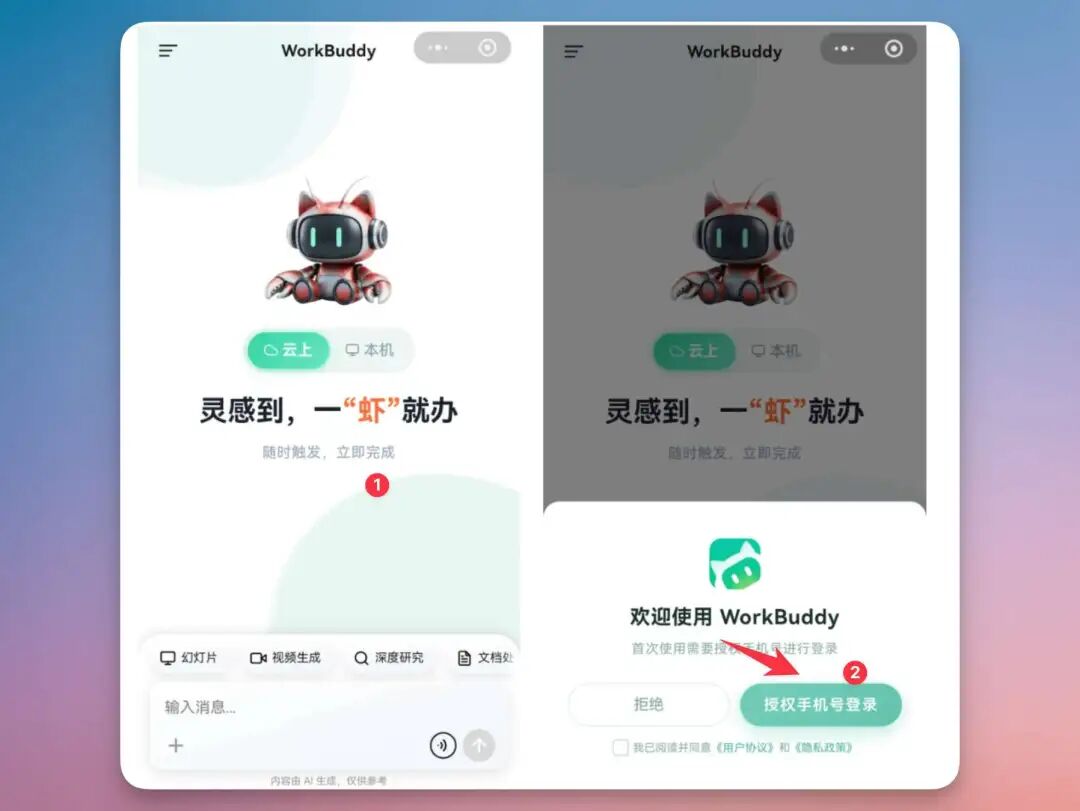
When you're away from the computer, the WorkBuddy mini-program can be a remote task entry point — sending instructions back to the running desktop client so the computer keeps searching files, reading material, organizing invoices, handling WeChat files, and even reporting progress on a long task.
The Mini-Program Remotely Controls the Computer
Traditional remote work usually has two forms: one mirrors the computer screen to the phone and you click the mouse yourself; the other uploads files to the cloud first, then handles them on the phone.
WorkBuddy's remote mode sits between the two: the user doesn't drive the mouse directly — they state the task; the desktop WorkBuddy reads local files, calls Skills or local tools within the authorized scope, and returns intermediate results and final deliverables to the phone.
| Capability layer | What it solves | What to confirm when using |
|---|---|---|
| Phone-side entry | Start a task on the road, between meetings, at a client site | Account signed in, messages deliver, voice-to-text has no key errors |
| Desktop execution | Read local dirs, call local software, handle private material | Computer online, WorkBuddy running, dir permissions authorized |
| Task return | Send candidate files, summaries, tables, screenshots, zips back to the phone | Output path clear, no overwriting originals, sensitive info desensitized first |
| Human confirmation | Avoid remote-state mistaken delete/send/edit of important material | High-risk actions must pause for confirmation — "executed" ≠ "accepted" |
First Tell Apart: Cloud Mode or Local Mode
Mobile suits continuing tasks while commuting, traveling or across devices. But before use, you must judge whether the task should run in the cloud or on the local machine.
This judgment directly affects whether it can read computer files, whether the computer needs to be online, and whether the data suits a cloud environment.
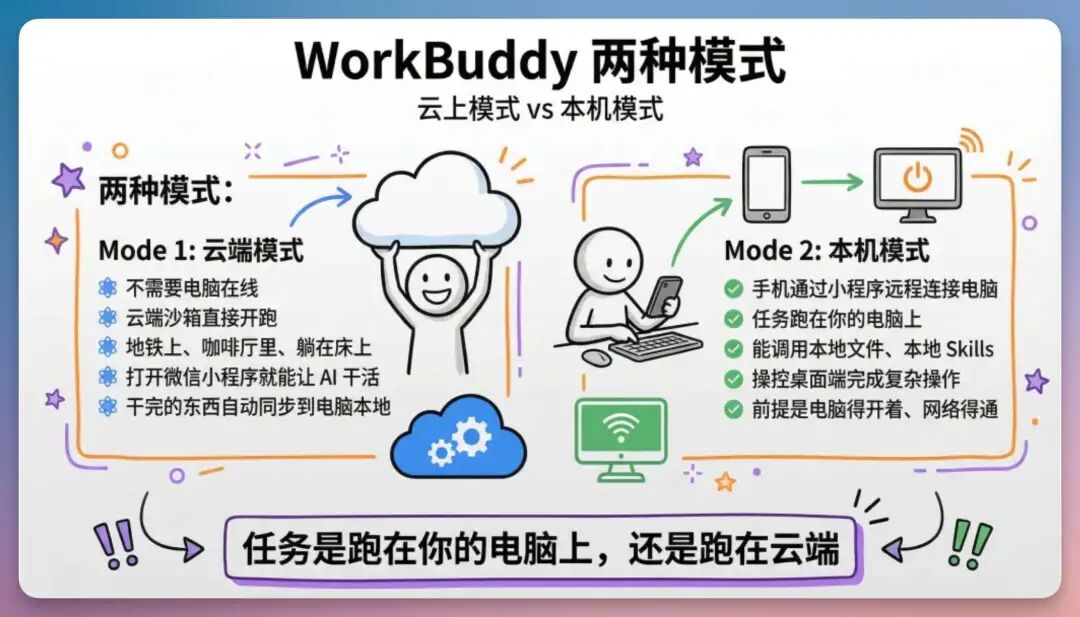
| Question | Cloud mode | Local mode |
|---|---|---|
| Computer online needed? | Usually no | Yes — and WorkBuddy must be responsive |
| Can read computer dirs? | Can't directly | Can read authorized local dirs |
| Suited tasks | Public-material research, outlines, lightweight text | Find local files, read private material, call local Skills/software |
| Main risk | Whether material suits the cloud | Dir permissions, mistakes, computer offline, results unaccepted |
Out and About, Need a File on the Computer Suddenly
This is the scene that first makes users feel the value of remote control. A partner suddenly asks where the training deck, project report, contract version, quote, event-poster source file is — and it's all on the office computer. You used to only say "I'll look when I'm back". Now you can voice-start a task in the mini-program, have the desktop WorkBuddy find candidate files in given dirs, read content and produce a summary.
Scene Pain
- You may not remember the full filename — only keywords like "training", "project report", "a certain client".
- The computer may have multiple versions; remotely, you can't just send by feel.
- The temporary need often just needs a summary or a confirmation line for the other side — not necessarily the original file right away.
Recommended Flow
- First limit the dir — e.g. desktop, Downloads, project material, the training folder.
- Have WorkBuddy do a read-only scan, listing candidate files, modified time, size and likely match reason.
- After confirming the target file, read content and generate a summary that's forwardable from the phone.
- When sending a file, organize it into a separate output dir — don't move the original directly.
Take a look: on my computer, in my "local long GPT" folder, there are some PPTs about company XX. Tidy up the content and send it to me.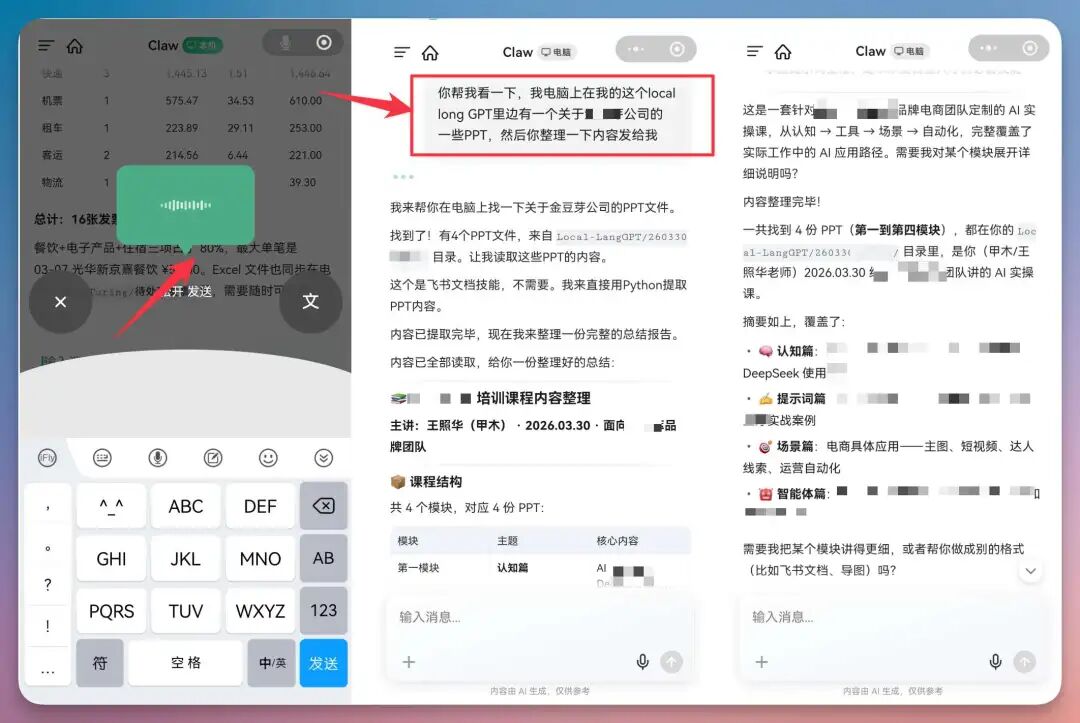
Handle WeChat Files Directly — No Shuttling Back and Forth
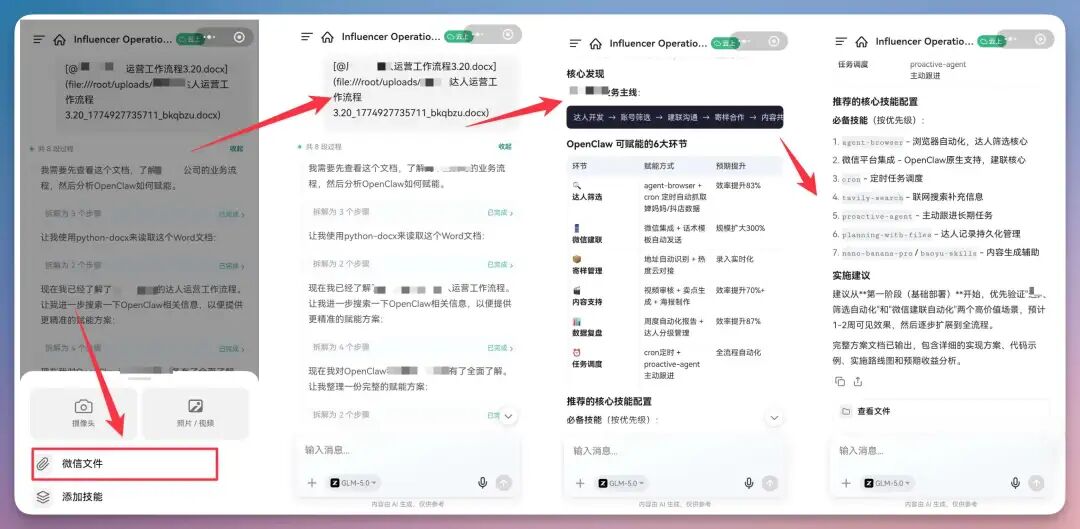
Many tasks don't start in a computer folder — they pop up in a WeChat chat: a client sends a contract PDF, a friend sends a receipt photo, a colleague drops an Excel, a supplier forwards a zip. The old flow: download to phone, transfer to computer, find the dir, open the software. The mini-program is better at turning "the file in the WeChat context" directly into WorkBuddy input.
Remotely Monitor a Long Task — Let the Phone Be a Task Board
Remote control has a more advanced use: not a few-second mini-task, but having WorkBuddy keep advancing a task that needs waiting, staged handling, or is failure-prone — like batch-converting files, tidying a big dir, generating a website, processing meeting audio, running code tests, downloading material, crawling public pages, auto-checking system state.
What Remote Monitoring Suits
- The task takes over 3 minutes and needs staged reports.
- The task may hit failures mid-way and needs to log them and keep going on other files.
- Results need a preview before deciding the next batch step.
- The task may trigger high-risk actions mid-way: login, payment, sending messages, overwriting files.
Start this batch-processing task and use the phone as a progress board.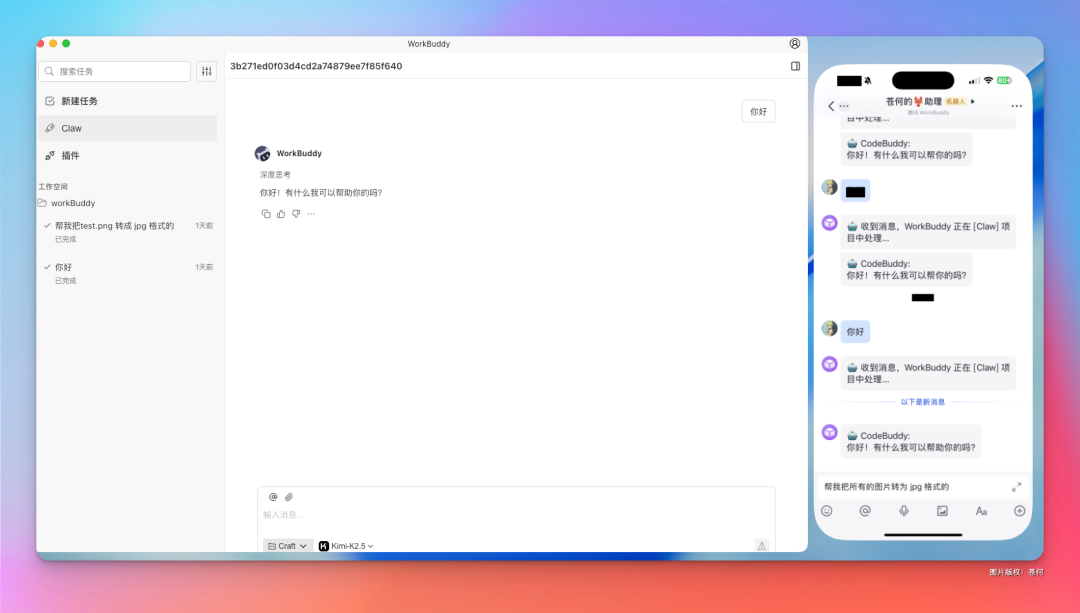
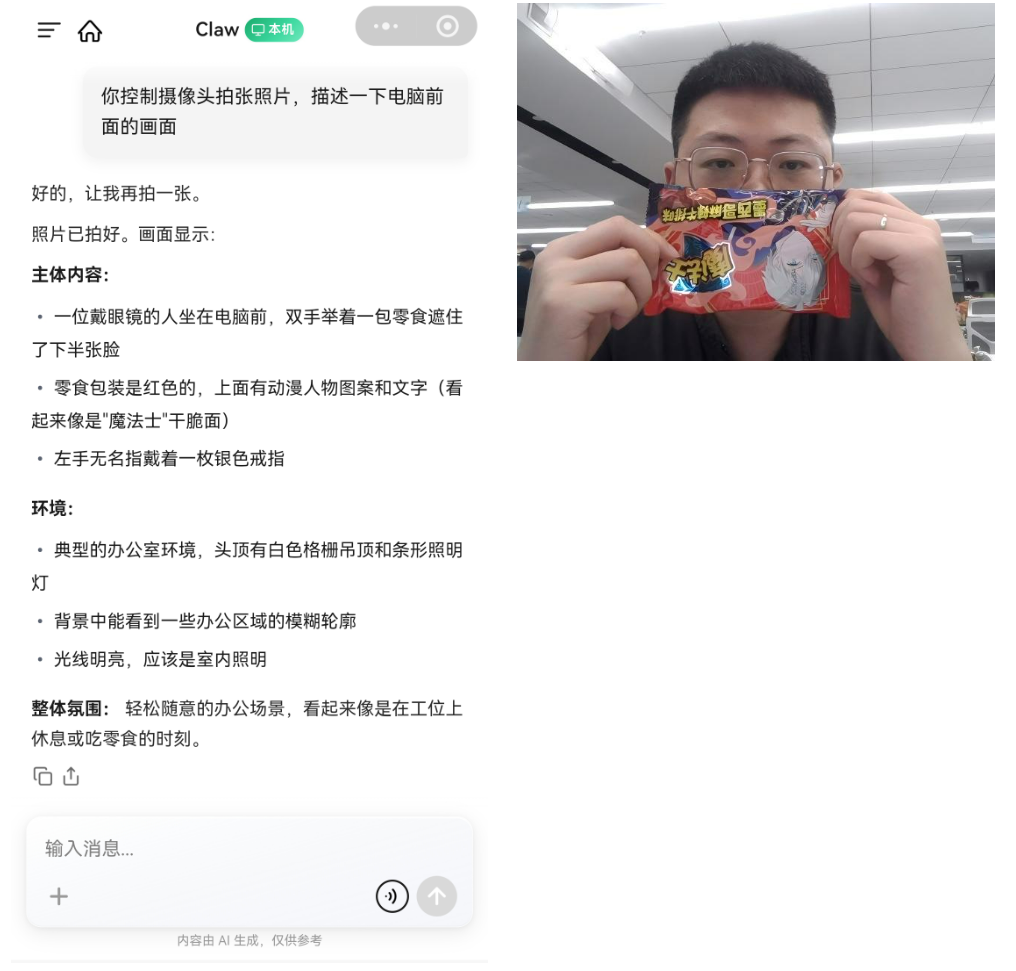
Control the camera and take a photo, then describe what's in front of the computer.